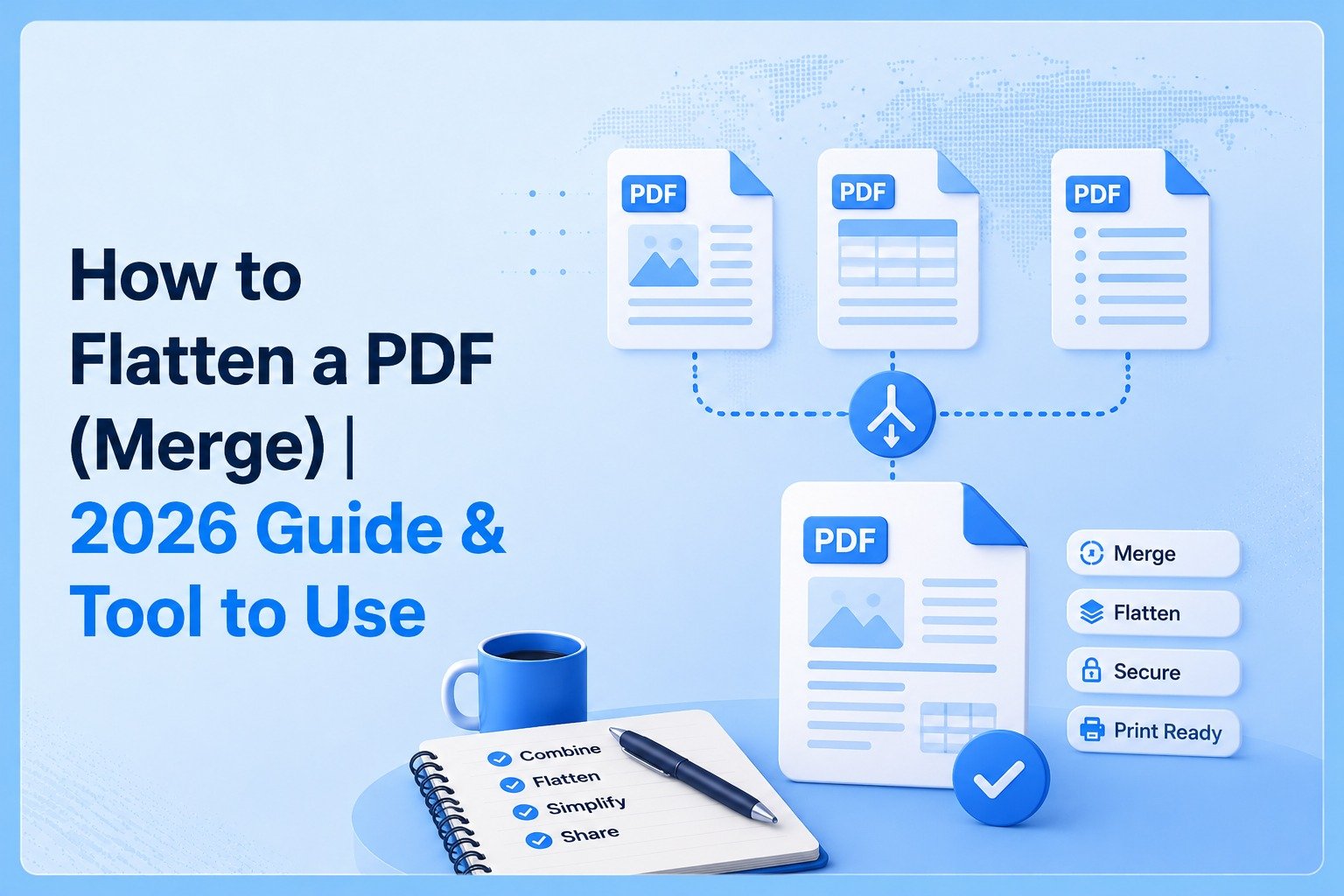
Flattening or Merging a PDF multiple layers such as text, images, annotations and forms into a single layer is an important action especially for professionals. It makes it look more formal and most importantly make it look identical on any device and can not be interrupted easily and it also ensures the smooth printing & presentation.
Flattening a PDF may feel difficult to many people but it is not if you’re using the right method. Here I’m gonna give you two reliable methods, of which second one is a proper professional method and the suggested one to use. But first have a quick look that what flattening means.
What does flattening a PDF means?
PDF flattening stands for the method of merging different layers of a PDF file like annotations, images, field forms and other interactive elements into a single static layer which makes it look more professional and clear.
This is basically the finalization of the document making it non-editable and keeping it consistent across devices and printers.
#1 Print-to-PDF (conventional method)
This is the conventional method which people mostly use but is not useful without ideal printer setup and may not work every time such as with complex files or sometimes may lag the desired results.
- In your device, open the file in the PDF reader
- Click on the “Print” option or command Ctrl + P
- Instead of selecting a physical printer, select the option “Save As”
- There you choose the PDF format and download
This looks very simple and may work if your file is not too complex but not suitable in every case.
Where this method lacks:
Loss of interactive elements - This method removes all the useful interactive features such as fillable forms, clickable buttons, links, embedded checkboxes and dropdowns.
Slight change in formatting - Not every time but you may lose the original formatting of your document, it can be ignorable or maybe not.
Not supportive for complex PDFs: Complex files such as with too many fields and features with a big set of information may collapse through this method.
Lack selective control: You do not have any selection during the process.
Quality may depend on printer: Your output can be dependent upon the particular setting of the printer.
When can you use this method?
You can use this method for very simple files or when you can bear the quality drop.
#2 Using a PDF Flattening or PDF Merge Tool
There are numerous tools that do the flattening of your PDF file and out of which you need a reliable and truly useful tool for you.
You can use WebToolsHub PDF Merge tool which is a reliable and trustable option with key features that completely address all the drawbacks of conventional print-to-pdf method and takes a plus point above many merge tools.
Key features of PDF Merge by WebToolsHub:
Simple method
Tool usage is very clear with a clean interface and a flowing process of three steps. You just go, upload and download your merged PDF file.
Preserved formatting
It does not disturb your documents formatting and keep it consistent across devices.
Speed
The tool does not take excessive time to load and process, it is quick and responsive to every purposeful action.
Finalized product
It gives you a finalized static PDF file in which you have already determined all the interactive features but do not make them feel itchy like in print-to-pdf method.
Secure
The biggest concern when using online tools is about privacy and data storage. WebToolsHub do not store your data and misuse it anywhere other than your own purpose. Your data is uploaded to the cloud and removed after a certain time to value your privacy.
How to Flatten a PDF by Using WebToolsHub (Step-by-Step)
The process is straight and simple. It only takes your three clicks and a few moments to follow these three steps and get your quality merged PDF file.
Step 1: Go to the PDF Merge tool by WebToolsHub
Step 2: Upload your PDF file there
Step 3: Download your merged / flattened file.
That’s it, no need of technical skills and any setup to do. You can simply get your editable PDF into a standard & static merged layer PDF in a few moments with this method with not such any issues.
Comparing both methods
| Aspect | Print-to-PDF | PDF Merge Tool (WebToolsHub) |
|---|---|---|
| Merge Quality | Moderate | Professional standard |
| Secure | Yes | Yes |
| Control | No | Standard finalized file |
| Disturbance | Can disturb layout and formatting mostly with complex files and too many formats | Keep the layout and formatting consistent without disturbance |
When to go with each method?
Use print-to-pdf method if your file is very simple.
But if you need a standard merged layers PDF with no formatting changed and a professionally static finalized PDF file, you should go with PDF Merge tool.
Tips to Remember
- Always have a backup copy of your word with the original setup.
- Check yourself the flattened file before sharing further.
- Use standard PDF viewer like built-in ones in Chrome, Edge & Firefox or SmallPDF and Xodo.
- Compress the converted file if it becomes large.
- Use flattening only when needed.
- Use privacy-wise reliable tool.
Conclusion
Flattening a PDF, especially for the multiple layer and interactive elements files is a must step when you are finalizing it to make it static and non-editably presentable. There are two main methods. First, the conventional way to do it, the print-to-pdf method which sometimes feel lacking especially with bigger complex files.
The second and better effective method is using a trustable PDF flattening or merge tool such as PDF merge tool by WebToolsHub. It finalizes your PDF file with standard static and non-editable result and a very simple workflow to follow.
FAQs
Is PDF flattening the same as merging multiple PDFs?
Flattening is only about layers but merging includes the combining of both layers and different PDF files. PDF merge tool can do both things.
Does flattening a PDF file reduce the size?
Yes, it reduces the file size by making the interactive elements static but a good tool should preserve the formatting and layout.
Is it safe to use online PDF flatteners?
It is completely safe if you use reliable tools like PDF merge tools of WebToolsHub.
Why does my flattened PDF look different on different devices?
Your flattened PDF look different across devices because the method or tool you used disturbed its layout.