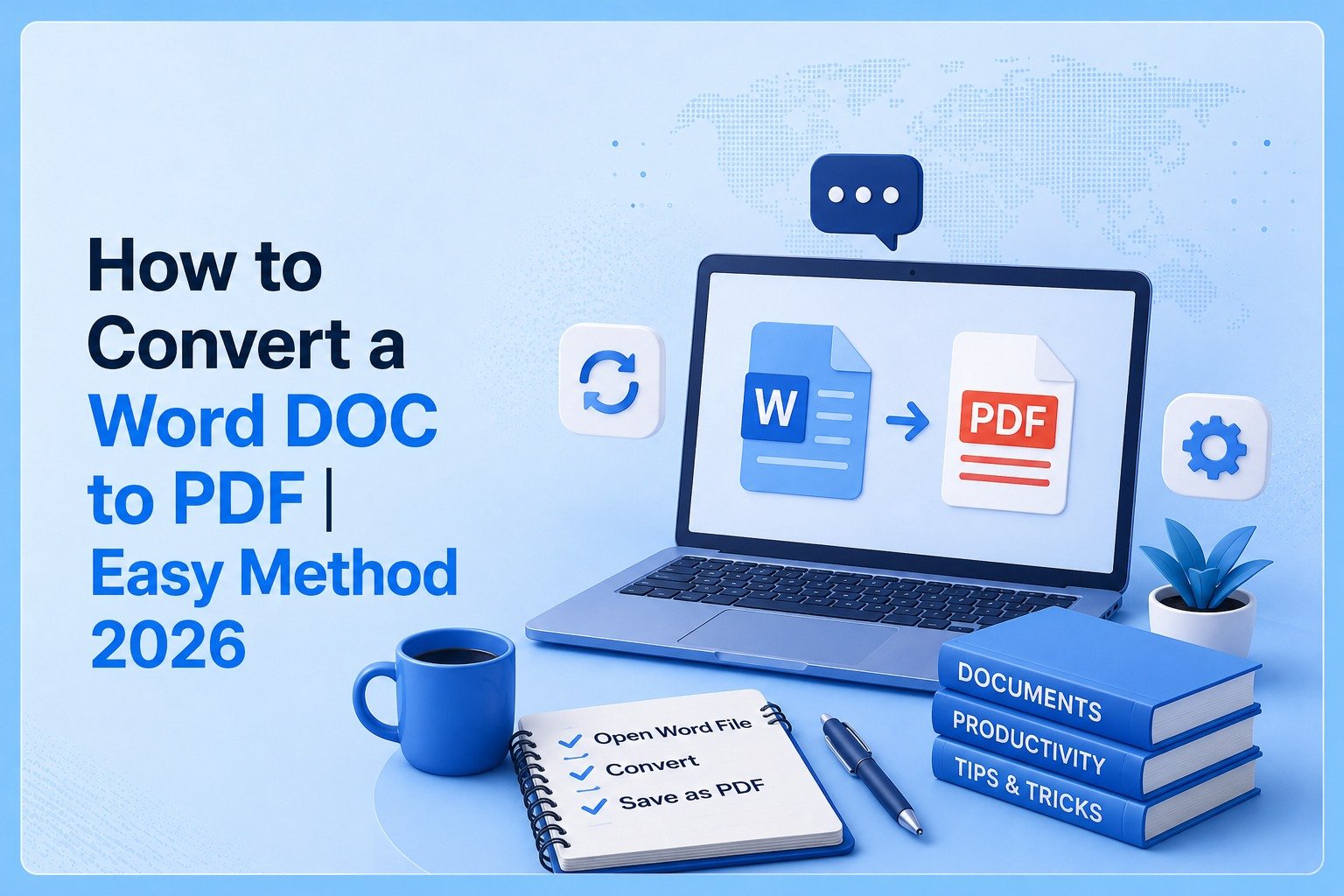
You can not keep your text in Word file format, it is good for writing but not to use for professional and academic purposes and there you need to know how to convert a Word Doc to PDF file so you can submit it in your office or in your college.
This guide is going to give you three simple methods to convert or download your doc file as PDF format so you can present it professionally & academically and the third method is the most effective.
How You Can Convert (Quick Answer)
Before going to the three methods, this is the quick actionable answer for you.
- Go to any Word to PDF converter (like webtoolshub PDF converter).
- Upload your Word file.
- Click on the button that starts the process.
- A few moments and your Word DOC is converted to PDF. Download it.
How to Convert a Word Doc to PDF
You mostly need to convert your Word documents to PDF format for professional and academic use especially and here are the three methods you can choose.
Method #1 (MS Word)
You can download your Doc file as PDF by using Microsoft Word if it opens in it because for some reasons sometimes a Google Doc file do not open in MS Word or user do not get their file in PDF.
Steps to Follow:
Step 1: Open your file in MS Word
Step 2: On the top left corner in the menu, click on “File”
Step 3: Select the option “Save As”
Step 4: Choose the location for your file after download
Step 5: Select the file format “PDF”
Step 6: Click on Save.
If your document is already in Microsoft Word, you can do it simply.
Method #2 (Google Docs)
A similar method is with Google Docs but it can feel a bit more hassle.
Steps to Follow:
Step 1: Open your Google Docs account
Step 2: Click on blank or an existing document.
Step 3: Upload your Doc file there.
Step 4: From the menu, click on “File”
Step 5: Click on the sixth option of “Download” and choose PDF format.
This method feels a bit focused or you may feel difficulty in upload and conversion.
Method #3 (Simply Using WebToolsHub PDF Converter)
The above two methods may not work for someone sometimes or you can feel that there are 5 to 6 steps to follow but this method is too simple, literally 3 or 4 steps and a few clicks and very effective.
Simple three steps to follow:
- Go to Word to PDF tool by WebToolsHub
- Drop your docx file or click to upload.
- Download your PDF file.
No need to go through the documents, simply go to the tool, upload and download, a process of three simple steps with the same number of clicks and a few moments.
Features of WebToolsHub Word to PDF
All the features of Word to PDF converter tool by WebToolsHub are for convenience and a top notch user experience.
Simplicity & Clarity
The user interface is very clear and beginner friendly. Even a new user can simply understand the process and use it for the purpose with easy three steps.
Printable PDF
The Word document converted to the PDF format is fit for print.
Speed
Tool responds ideally quick for a user action without taking excessive time to load and go on the process.
User Privacy
The platform care about their users’ privacy and does not save their data and use it anywhere else. Data is not even stored, it is uploaded on cloud and kept private. Also the uploading of files and downloading is securely free from malwares and viruses.
Comparing all three methods
All the three methods are good to go for you but based on your choices and some parameters, we can compare these three and you can choose the best suit for you.
| Aspect | Using MS Word | Using Google Docs | Word to PDF converter by WebToolsHub |
|---|---|---|---|
| Simplicity | simple | almost simple | Very simple, three steps of three clicks |
| Security | Secure | Secure | Secure (do not store or misuse a user’s data) |
| Need of Internet | No | Yes | Yes |
| Speed | Medium Fast | Medium | Fast |
| Best for | If your document is written in MS Word and not facing any system delays | If your system usually do not delay it | If you want to go with a simple and most accurate format process |
Why Choose a PDF converter (WebToolsHub)?
You do not need to go through your documents, you can simply go to the tool, upload you file and download it. Just care about one important thing that you choose a trusted tool like Word to PDF converter by WebToolsHub for best results and user security.
Tips to Remember
- Do not use a tool that does not promise user security.
- Do not purchase before trying the tool.
- Have good internet access.
- Be careful that you’re uploading the right format.
Conclusion
Your DOC file becomes significant to be converted into PDF format for your professional and academic use and primarily there are three methods. One is to use Microsoft Word, secondly to use Google Docs and third one which is simpler and most effective, you can use a PDF converter tool online.
The only thing which matters the most in the case you use a PDF converter that you choose a good one like Word to PDF tool by WebToolsHub.
FAQs
Can you convert Word into PDF without MS Word installed?
Yes, you can do it with a Word to PDF converter tool. Use webtoolshub’s Word to PDF for reliable results and performance.
Does converting Word to PDF change the formatting?
If you are using a good tool like WebToolsHub or Adobe, such formats keep the fonts, images and overall formatting the same as in your Word file.
Is it safe to upload my file to an online converter tool?
It may feel risky but if you are using a trustable tool, you are not going to face any privacy concerns.
Do I need the Internet to convert my Word file to PDF?
If you have MS Word installed, you may not need the internet but using an online converter or Google Docs need internet access.
How can I convert multiple Word files to PDF at once?
This is the biggest benefit of using a good Word to PDF tool. You can convert multiple Word files to PDF at once by selecting the multiple files while uploading. All the uploaded files will be converted to PDF format and you can then download all at once with ease.