How to Extract Text from an Image Online with Free OCR Tool
Have you ever needed to copy words from a photo, screenshot or printed page but found that you could not select the text. Typing everything manually can take time especially when an image contains several paragraphs. An image to text converter can make this task easier by turning words inside a picture into digital text.
WebToolsHub offers an online OCR tool designed to help users extract text from supported images. Whether someone needs to copy study notes, read a screenshot or collect details from a printed document.The tool provides a convenient way to work with image based text.
This guide explains how the WebToolsHub tool works, how to use it, what affects recognition accuracy and how to get better results.
What Is an Image to Text Converter?
An image to text converter is an online tool that identifies words inside an image and changes them into text that users can reuse. Instead of typing each line a user can upload a picture and let OCR technology recognise the visible content.
OCR stands for optical character recognition. It helps computers recognise letters, numbers and words in pictures. The recognised result is called extracted text which can be copied into notes, emails, reports or other documents.
For example, a student might need to extract text from image based class notes. A business owner may want details from an invoice while another user may need to copy a message from a screenshot. OCR can help with these tasks without requiring every word to be typed again.
How WebToolsHub Image to Text Converter Works
WebToolsHub Image to Text Converter is intended for recognising text inside supported images. It provides an online tool for users who want to turn image content into reusable text.
Step 1: Open the WebToolsHub Tool
Visit WebToolsHub.tech and open the Image to Text Converter from the tools section. This online tool is useful when the source is a picture containing readable words.
Step 2: Choose and Upload Your Image
Select an image from your device. Depending on the supported formats this may be a JPG, PNG, screenshot or photograph. Use the upload option shown on the tool page to upload your image.
For the best results choose a picture with clear writing, good lighting and minimal blur. If the text is small make sure the image has enough resolution for the characters to remain readable.
Step 3: Start Text Recognition
Once the image has been selected follow the controls displayed by the tool to begin the recognition process. An OCR engine examines the picture and identifies visible characters.
The exact result depends on image quality and the text recognition process. Clear printed text is often easier to recognise than unusual fonts, complicated layouts or difficult handwriting.
Step 4: Review the Result
After text extraction, read through the result and compare it with the original picture. Check names, dates, numbers and punctuation because OCR can sometimes mistake similar looking characters.
Step 5: Copy the Text for Your Work
When the result looks correct use the available option to copy the text if provided. You can then paste the content into a document, email, note or another application.
This workflow helps users convert image to text online without manually retyping an entire page. The available controls and output options depend on the tool's actual interface.
What Types of Images Can You Use?
The best image for OCR is one in which the words are easy to see. WebToolsHub image text extractor is intended for supported image formats so users should check the accepted file types before uploading.
JPG and PNG Images
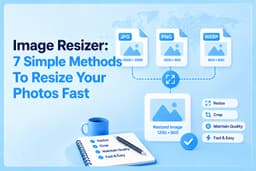
JPG images are common for photographs while PNG images are frequently used for screenshots and graphics. Both formats can contain printed words that an OCR tool may recognise.
A JPG to text task may involve a picture of a notice, a page from a book or a printed form. PNG images can be useful when text appears in an application screenshot or digital graphic.
Screenshots
Screenshots often contain useful information such as addresses, instructions, messages and short passages. OCR can help extract text from screenshots when the words are visible and clear.
Photographs of Printed Pages
A phone camera can capture a printed page when the original document is unavailable. The user can then use an image to text workflow to capture the readable content.
Handwritten Notes
OCR may also recognise handwritten text but the result depends on the writing style and image quality. Neat handwriting with clear spacing is usually easier to recognise than connected letters or overlapping words.
Why Use WebToolsHub for Text Extraction?
WebToolsHub brings several online tools together on one website. Its Image to Text Converter provides a convenient option for people who need to work with words found inside pictures.
The main benefit is that users can start from an image instead of retyping the content. A free OCR tool can be helpful for students, office workers, researchers and anyone who regularly receives information as a picture.
The website describes its tools as browser based and promotes access without requiring signup. Users should still check the current tool page for its supported formats and available features.
Common Reasons to Extract Text from Images
Students and Researchers
Students can use OCR to capture information from study notes, classroom screenshots and printed learning materials. Researchers may use it to collect short passages for review although any quotation should be checked against the original source.
Businesses and Office Work
A business may receive an invoice as a photograph or need to copy details from a printed notice. OCR can help move the visible information into a digital workflow. Important amounts, dates and account details should always be verified manually.
Everyday Reading
Sometimes a picture contains an address, recipe, quotation or instruction that needs to be saved. OCR makes it easier to pull text from the picture and reuse it in another application.
Digital Content and Notes
Content creators may need text from a screenshot or a photograph of printed material. After recognition the text can be edited and organised for personal notes or further work.
How to Get More Accurate OCR Results
OCR works best when the source image is clear. Follow these tips before starting text extraction.
- Choose a sharp image: Blurry characters are harder to recognise.
- Use good lighting: Avoid shadows and glare across the words.
- Keep the image straight: Rotate a tilted picture before uploading it.
- Crop unnecessary areas: Focus on the section containing the required text.
- Use readable images: Very small text may need a higher resolution image.
- Check the output: Compare important details with the source before using them.
These steps can help you easily extract useful content and reduce the number of corrections needed afterwards.
Image to Text converter vs PDF to Text converter
Image to text converter and PDF to text converter tools serve related but different purposes. An image converter recognises visible words inside an image while a PDF converter works with a document that may contain selectable text, scanned pages or both.
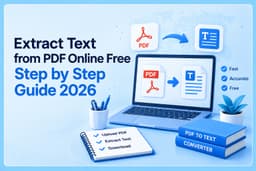
If a PDF contains scanned pages, OCR may be needed to recognise its content. A separate PDF text extraction tool may be more suitable for that task. You can also read our step-by-step guide to extract text from PDF online for free.
WebToolsHub's Image to Text Converter is intended for image input. Do not assume that it can process PDF files directly unless PDF support is shown on the tool page. When a document is required choose a tool that explicitly supports that format.
Frequently Asked Questions
How can someone extract text from any image?
The user can upload a clear supported image to an OCR tool, start recognition and review the result. The phrase “any image” does not mean every picture will produce perfect results, image quality and file support still matter.
Is there a free online OCR tool?
Yes, online OCR services can provide text recognition without requiring desktop software. Check the current WebToolsHub page for the features and formats available for free.
Can OCR recognise handwritten text?
Some OCR systems can recognise handwriting but results vary. Clear writing, good spacing and a sharp image improve the chances of getting readable text.
Can users edit the extracted result?
Recognised content can generally be copied into an editor or document and changed as needed. This creates editable text from content that was originally part of a picture.
Does the tool work with PDF documents?
The Image to Text Converter is intended for images. Users who need to convert PDF documents should use a suitable PDF tool that explicitly supports the required task.
What is the difference between OCR and manual typing?
Manual typing requires someone to enter the words one by one. OCR attempts to recognise the text automatically although the result still needs checking for errors.
Final Thoughts
OCR makes it easier to reuse words that appear inside pictures. With a suitable image and a supported file format users can upload a picture, recognise the text, review the result and copy the content for their work.
WebToolsHub Image to Text Converter is designed to help users work with text inside images without manually typing every line. For reliable results start with a clear picture, check the recognised content and use a dedicated PDF tool when the source is a PDF document.